
|
|
||
CBTAngleWnd: A cool rotation angle custom control with
full source code!
|
Free Products List:
|
Author homepage:
UCanCode Software (www.ucancode.net)
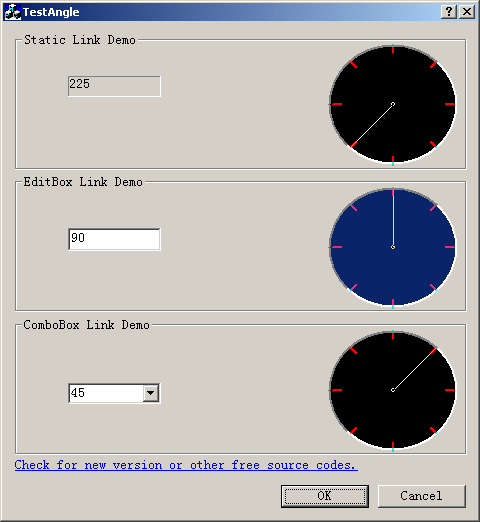
This article shows how to implements the angle custom control, a circle with a line indicating a rotation angle. This control is a CWnd based control, it includes three classes CBTAngleWnd, CBTComboBox, CBTEditBox, we can use this control to attach with another CWnd based control, such as we can attach to staticbox, button, editbox, combobox etc. The core class is CBTAngleWnd. All source code is included with the zip files.
Step1: First off, to use the CBTAngleWnd class, you will need to include the following files in your project:
BTAngleWnd.h
BTAngleWnd.cppBTComboBox.h
BTComboBox.cppBTEditBox.h
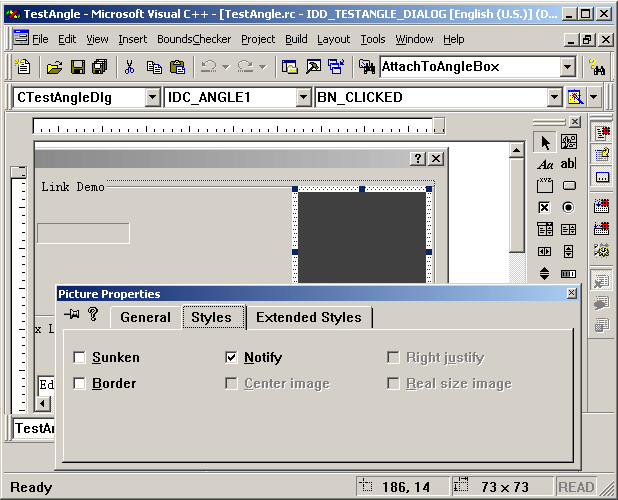
BTEditBox.cppStep2: Once you have the class at your disposal, using it is simple, open dialog resource editor, drag a new picture control from the control toolbar panel to the dialog, and change it's ID to IDC_ANGLE1,then you should check the Notify property value. As the blow shows:
Step3: Add two members to your dialog class like this:
class CTestAngleDlg : public CDialog
{
// Construction
public:
	CTestAngleDlg(CWnd* pParent = NULL);	// standard constructor

// Dialog Data
	//{{AFX_DATA(CTestAngleDlg)
	enum { IDD = IDD_TESTANGLE_DIALOG };
	CFOHyperLink	m_Home;
	//}}AFX_DATA
	CStatic	m_Static;
	CBTAngleWnd m_AngleCtrl1;
|
Step4:Now add the following BOLDED code
below to your OnInitDialog() function:
BOOL CTestAngleDlg::OnInitDialog()
{
	CDialog::OnInitDialog();

	// Add "About..." menu item to system menu.

	// IDM_ABOUTBOX must be in the system command range.
	ASSERT((IDM_ABOUTBOX & 0xFFF0) == IDM_ABOUTBOX);
	ASSERT(IDM_ABOUTBOX < 0xF000);

	CMenu* pSysMenu = GetSystemMenu(FALSE);
	if (pSysMenu != NULL)
	{
		CString strAboutMenu;
		strAboutMenu.LoadString(IDS_ABOUTBOX);
		if (!strAboutMenu.IsEmpty())
		{
			pSysMenu->AppendMenu(MF_SEPARATOR);
			pSysMenu->AppendMenu(MF_STRING, IDM_ABOUTBOX, strAboutMenu);
		}
	}

	// Set the icon for this dialog.  The framework does this automatically
	//  when the application's main window is not a dialog
	SetIcon(m_hIcon, TRUE);			// Set big icon
	SetIcon(m_hIcon, FALSE);		// Set small icon

	m_Home.SetColors(RGB(0,0,255), RGB(0,0,255), RGB(51,102,153) );
	m_Home.SetURL(_T("http://www.ucancode.net/Products/free%20product/colorpicker.htm"));


	/////////////////////////////////////////////////
	m_AngleCtrl1.SubclassDlgItem(IDC_ANGLE1, this);
	m_Static.SubclassDlgItem(IDC_STATIC_ANGLE, this);

	m_AngleCtrl1.AttachToEditBox(&m_Static);

	m_AngleCtrl1.TurnOnNow(TRUE);
	m_Static.SetWindowText("225");
	m_AngleCtrl1.SetAngleValue(225, TRUE);

	return TRUE;  // return TRUE  unless you set the focus to a control
}
|
That's all you need to to, if you want to attach the angle control to edit box or combo box, you should use the following code instead:
| CBTComboBox
m_AngleCombo; CBTEditBox m_AngleEdit; CBTAngleWnd m_AngleCtrl2; |
| // TODO:
Add extra initialization here m_AngleCtrl3.SubclassDlgItem(IDC_ANGLE3, this); m_AngleCombo.SubclassDlgItem(IDC_COMBO_ANGLE, this); m_AngleCtrl3.AttachToEditBox(&m_AngleCombo); m_AngleCombo.AttachToAngleBox(&m_AngleCtrl3); m_AngleCtrl3.TurnOnNow(TRUE); m_AngleCombo.SetWindowText("45"); m_AngleCtrl3.SetAngleValue(45, TRUE); ///////////////////////////////////////////////// m_AngleCtrl2.SubclassDlgItem(IDC_ANGLE2, this); m_AngleEdit.SubclassDlgItem(IDC_EDIT_ANGLE, this); m_AngleCtrl2.AttachToEditBox(&m_AngleEdit); m_AngleEdit.AttachToAngleBox(&m_AngleCtrl2); m_AngleCtrl2.TurnOnNow(TRUE); m_AngleEdit.SetWindowText("90"); m_AngleCtrl2.SetAngleValue(90, TRUE); m_AngleCtrl2.SetBackColor(::GetSysColor(COLOR_ACTIVECAPTION)); |
That's all, if you have any good ideas about this control, feel free let me known.
Copyright ?1998-2024 UCanCode.Net Software, all rights reserved.
Other product and company names herein may be the trademarks of their respective owners.
Please direct your questions or comments to webmaster@ucancode.net



 E-XD++Visual
C++/ MFC Products
E-XD++Visual
C++/ MFC Products