UCanCode
ToolBox ---
Rename an Existing
Visual Studio project.
Author homepage:
UCanCode Software(www.ucancode.net)
Introduction
UCanCode ToolBox V1.7 can be used to perform one
or more of the following operations on Microsoft Visual C++ projects (version
5.0 or 6.0):
.Rename an existing project
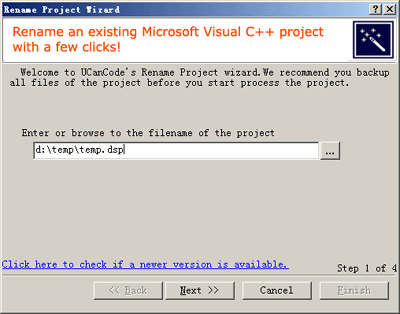
Step 1
Use the first wizard screen to select the Visual C++ project file to process.
You can enter/browse to a project filename. The wizard handles MAK, DSP, DSW
files.
Example:
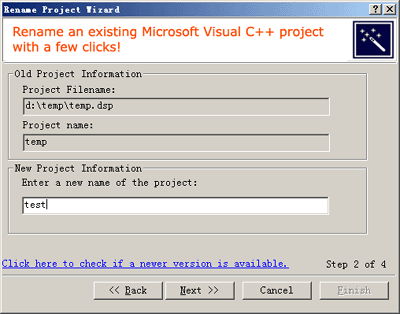
Step 2
After choosing a project filename and clicking Next, ToolBox parses the project
file to determine its name, and displays the name on the second wizard step. The
following selection is provided:
Rename the Project-- This option determines if the project filename and name
will be changed. This specifies how to rename an existing project. ToolBox uses
an intelligent algorithm based on the project type to identify strings within
the project files that contain the project name/filename, so that even for
simple project names (i.e.,Test, only the appropriate matching strings are
modified. In addition to changing all project name occurrences within the
project files, all project filenames that are prefixed with the project name are
modified to match the new project name (and any references to these files are
also updated).
Example:
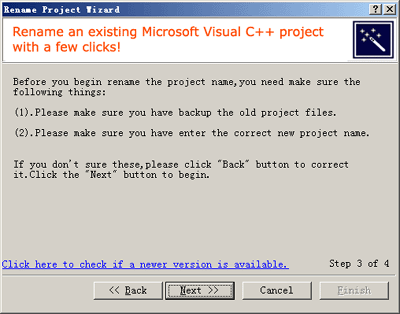
Step 3
The third wizard step is used to review and process your selections. After
reviewing the changes that will be made, click Next to begin processing. The
wizard parses the Visual C++ project file to determine the files that comprise
the project. If the project is being renamed, each filename in the project that
begins with the project filename root is renamed to match the new project name.
For instance, in a project MyApp.dsp being copied and renamed to NewApp, the
project files MyApp.cpp and MyAppView.cpp would be copied as NewApp.cpp and
NewAppView.cpp.
The project file and its constituent files are traversed, and if the
project
name is being changed, any instances of the old project name/filename root are
replaced with the new project name (any binary files in the project are copied
unchanged); any path/filename strings are updated as necessary.
Example3:
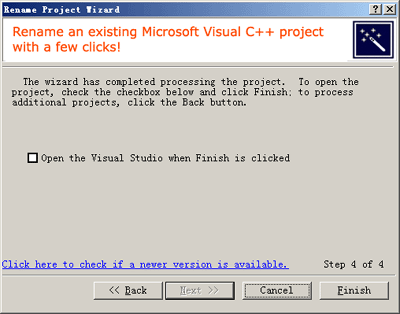
Step 4
After processing is complete, the last wizard step is displayed. To open the new
or updated project immediately, check the checkbox and click Finish. The project
will be opened in the Visual C++ IDE, where it can be built, modified, and
debugged as needed.
Example:




 E-XD++Visual
C++/ MFC Products
E-XD++Visual
C++/ MFC Products